
Custom Post Types: How to Create and Display in WordPress
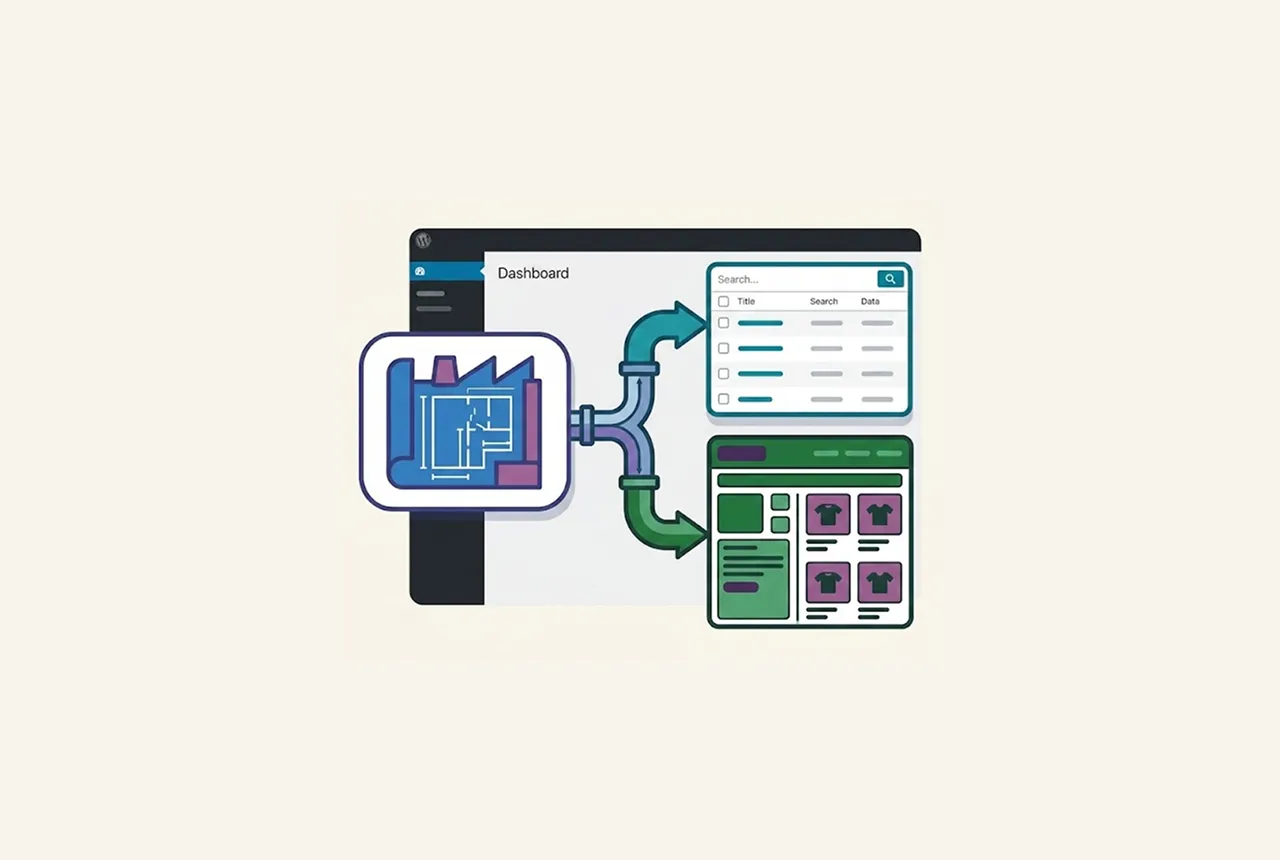
If you want to transform your website from a simple blog into a powerful content management system, you need to understand Custom Post Types. While WordPress comes with “Posts” and “Pages” out of the box, Custom Post Types allow you to create specialized content buckets—like “Books,” “Reviews,” or “Portfolios”—that keep your dashboard organized and your website professional.
A Custom Post Type (CPT) is essentially a regular WordPress post with a different post_type value in the database.
Many beginners worry that creating these will bloat their database. However, WordPress is highly optimized: all Post Types are stored in the existing wp_posts table. Instead of creating new tables, WordPress simply adds a label to the post_type column. This makes retrieving your data incredibly fast and efficient.
When to Use (and When Not to Use) Custom Post Types
When to use them:
- Unique Structure: When your content needs different data than a blog (e.g., a “Car” needs mileage and price).
- Organization: When you want to keep your “Client Testimonials” separate from your “Industry News.”
When to skip them:
- Simple Grouping: If you just want to group posts by topic, use a Category.
- Static Pages: If it’s just a “Terms of Service” page, use a standard Page.
How to Register Custom Post Types with Code
To create your new section, we use the register_post_type function. This is the official WordPress command that tells the database: “I have a new type of content, and here is how it should behave.” To register these in an optimized way, we use the init hook. This tells WordPress to recognize your new structure as soon as the core engine finishes loading, but before it tries to display any content. By using this function instead of a plugin, you keep your site lightweight and have total control over your URLs and admin icons.
For a deep dive into every possible setting, you should explore the official WordPress register_post_type Documentation.
Add this code to your functions.php file:
function register_my_custom_post_types() {
    $args = array(
        'labels'      => array(
            'name'          => 'Movies',
            'singular_name' => 'Movie',
        ),
        'public'             => true, // Essential for visibility
        'has_archive'        => true, // Creates a listing page
        'menu_icon'          => 'dashicons-video-alt',
        'supports'           => array('title', 'editor', 'thumbnail'),
        'show_in_rest'       => true, // Required for the Gutenberg editor
        'rewrite'            => array('slug' => 'movies'),
    );
    register_post_type('movie', $args);
}
// Triggered on 'init' for best performance
add_action('init', 'register_my_custom_post_types');
Pro Tip: Writing clean, maintainable code is essential as your site grows. For more effective and optimized coding practices, check out our latest blog on SOLID Principles to take your development skills to the next level.
Visualizing Custom Post Types in the Dashboard
Once the code is active, you will see a brand-new menu item in your WordPress sidebar. This visual separation is why Custom Post Types are so popular for user-friendly web design.

Important Parameters for Custom Post Types
When setting up your code, these parameters act as the “brain” of your post type. If you don’t set them correctly, things might break:
| Parameter | Why is it important | Why is it important |
| public | Determines if the content is visible to the public. | Your posts will be invisible to visitors! |
| show_in_rest | Enables the modern Block (Gutenberg) Editor. | You’ll be stuck using the old, outdated text editor. |
| has_archive | Enables a URL like mysite.com/movies/. | You won’t have a page that lists all your movies. |
| supports | Decides what features (Images, Titles) you can use. | You might find you can’t add a “Featured Image.” |
Final Step: Flush Your Permalinks
A common “newbie” mistake is seeing a 404 Error after creating Custom Post Types.
The Fix: Navigate to Settings > Permalinks in your dashboard and click “Save Changes.” You don’t need to change any settings; just clicking save “refreshes the site’s memory so it recognizes your new custom URLs.
Enjoyed this guide? We regularly post tutorials on WordPress development and coding best practices. Explore our full blog archive to find more tips on building better websites.